Schedule
This topic is intended for Independent pharmacies only and is not applicable to Rexall pharmacies.
Scheduling prescriptions allows you to place one or more prescriptions in the Data Entry queue for a future date. On the scheduled date and time, the prescriptions will auto-process.
Avoid scheduling a prescription refill to run between 12:00am - 5:30am. If scheduled during this timeframe, the prescription may not be processed due to coinciding scheduled upgrades, Third Party maintenance, backups, etc.
CPS must be open at the time the Batch is scheduled to run. If the Batch is scheduled to run overnight, do not close CPS at the end of the day.
The following prescriptions cannot be scheduled:
-
Prescriptions with an Incomplete status
-
Prescriptions with a Queued status
-
DURs
Scheduling prescriptions for a Group
Prescriptions can be scheduled for a Group from the Batch Manager. For more information, see Scheduling a Batch.
Scheduling prescriptions for a Patient
One or more prescriptions can be scheduled for a patient from the Batch Manager or Patient Profile. For more information, select the dropdowns below.
 From the Batch Manager
To schedule a prescription(s) for a patient:
-
From the Workbench, select the Batch Manager navigator button
 .
. -
From the Batch History tab, select Refill. The Batch Refill window opens.
-
Enter the following information:
-
Patient - the patient's name.
-
Optional - Ready Time - this is not the time the Batch will be scheduled for.
-
-
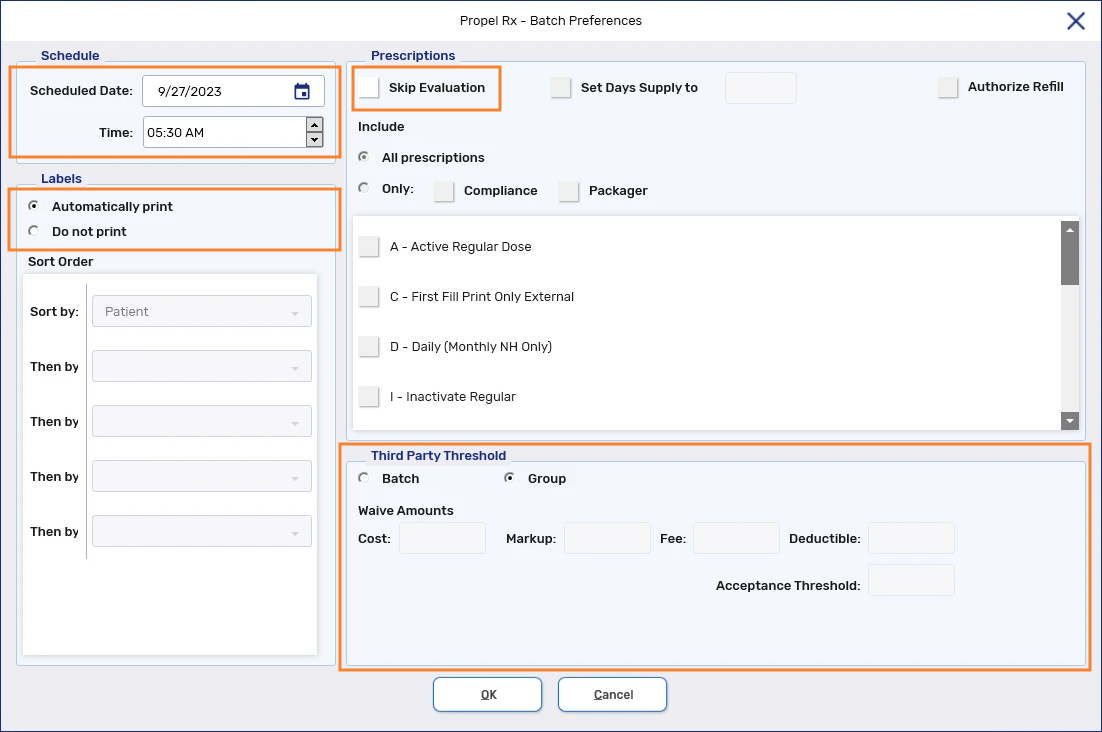
Select Schedule. The Batch Preferences window opens.
-
In the Schedule section, enter the following information:
-
Scheduled Date
-
Time
-
-
In the Labels section, select either:
-
Automatically Print
-
Do not print - labels do not print.
-
-
Optional - In the Prescriptions section, select the Skip Evaluation checkbox. When this checkbox is selected, the Rx Detail evaluation process is skipped and minor alerts do not prevent the prescription from being processed.
This setting can be used when you are familiar with the patient's existing medications and possible interactions.
-
Optional - In the Third Party Threshold section, select the Batch radio button if you want to apply waives specific to this Batch.
-
Waive Amounts - amounts entered in the Cost, Markup, Fee, or Deductible fields are deducted from all prescriptions in the Batch.
-
Acceptance Threshold - determines the threshold for bypassing the Claim Summary window. Prescriptions that have a total that is less than or equal to the acceptance threshold after adjudication bypass the Claim Summary window. For all other prescriptions, the Claim Summary must be viewed and any necessary waives made before the prescription can be resubmitted to achieve a Complete status.
-
-
Select OK. The Patient Profile opens.
-
Select the prescription(s) to schedule.
-
Select OK. The Batch Profile window opens.
-
Select OK. The prescription(s) is placed in the Data Entry queue for the scheduled date and time.
From the Patient Profile
To schedule prescription(s) for a patient:
-
From the Patient Profile, select the prescription(s) to schedule.
-
Select Rx > Schedule. The Batch Profile window opens.
-
Enter the following information:
-
Scheduled Date
-
Time
-
Optional - Ready Time
-
-
Select Preferences. The Batch Preferences window opens.
-
In the Labels section, select either:
-
Automatically Print
-
Do not print - labels do not print.
-
-
Optional - In the Prescriptions section, select the Skip Evaluation checkbox. When this checkbox is selected, the Rx Detail evaluation process is skipped and minor alerts do not prevent the prescription from being processed.
This setting can be used when you are familiar with the patient's existing medications and possible interactions.
-
Optional - In the Third Party Threshold section, select the Batch radio button if you want to apply waives specific to this Batch.
-
Waive Amounts - amounts entered in the Cost, Markup, Fee, or Deductible fields are deducted from all prescriptions in the Batch.
-
Acceptance Threshold - determines the threshold for bypassing the Claim Summary window. Prescriptions that have a total that is less than or equal to the acceptance threshold after adjudication bypass the Claim Summary window. For all other prescriptions, the Claim Summary must be viewed and any necessary waives made before the prescription can be resubmitted to achieve a Complete status.
-
-
Select OK. The prescription(s) is placed in the Data Entry queue for the scheduled date and time.
For an Auto Refill prescription, the future fill that existed on the Workbench before scheduling the prescription will be moved to the new scheduled date and time. The Auto Refill status of a prescription will be retained when it's scheduled.
Auto Refill prescriptions can only be scheduled from the Patient Profile. They are excluded if scheduled from the Batch Manager.
Rescheduling prescriptions
prescriptions can be rescheduled from the Batch Manager or Workbench.
From the Batch Manager
If the prescription was originally scheduled using the Batch Manager, you can reschedule it from the same location. For more information, see Rescheduling a Batch.
From the Workbench
To reschedule prescriptions:
-
On the Workflow Workbench, navigate to the date that the prescriptions are scheduled.
Use the calendar button
 to view prescriptions by day, week, or month.
 -
Highlight one of the scheduled prescriptions.
-
Select Rx > Batch. The Batch Profile window opens.
-
Update the Scheduled Date and Time fields as required.

-
Select OK. The Batch Profile window closes and the prescriptions are rescheduled.